3 Ways to Improve UniFi WiFi Performance

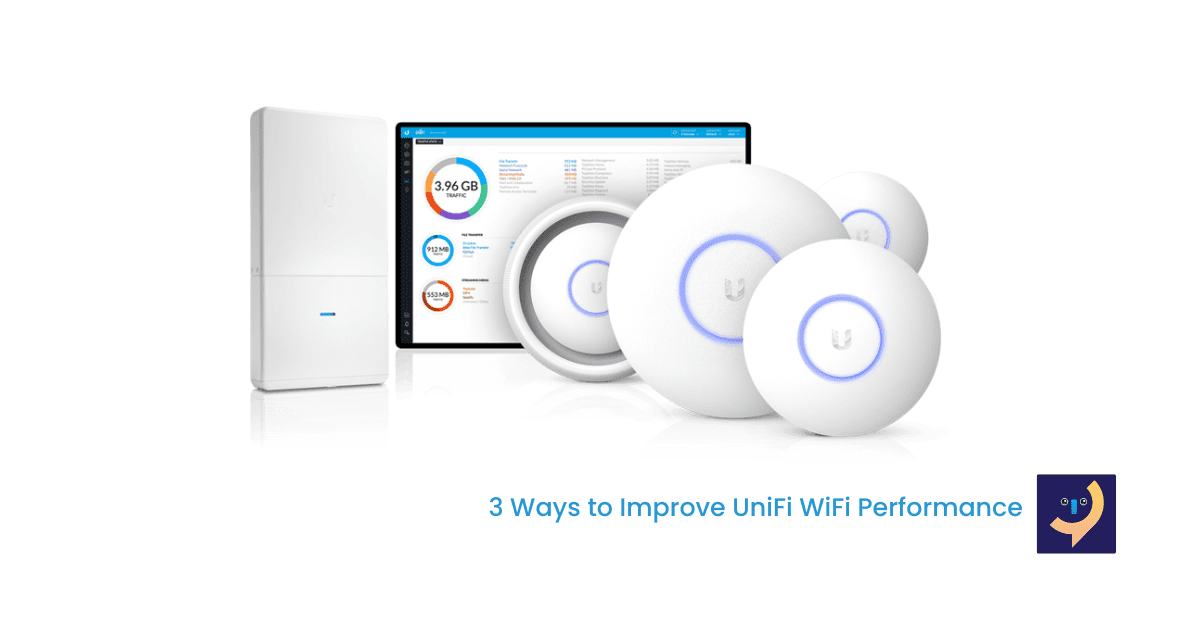
UniFi WiFi is a revolutionary WiFi system that combines Enterprise performance, unlimited scalability, a central management controller, and disruptive pricing. The UniFi WiFi access points are easy to deploy for home or office environments. There comes a time when you are using the UniFi WiFi and you feel like performance should be better. We share with you a few things that you can check and improve. You need to have access to the UniFi controller to be able to apply the improvements.
Adjust the UniFi WiFi Channel Width
The UniFi controller when you first set up your WiFi uses the default channel width that is supported by a majority of connected devices. The default channel width may not always provide the best speeds as expected. To improve your UniFi WiFi speed, you could attempt to adjust the channel width for the 2.4GHz and 5.8Ghz radio bands.
To potentially increase the maximum attainable speed on your UniFi WiFi you can set up your Channel width on 2.4GHz to HT40 (High Throughput). The 5.8GHz can be set up to VHT80 or VHT160 (Very High Throughput). These settings will help improve your speed taking into consideration that you have good quality CAT6 Ethernet cable to support these speeds.
Enable Band Steering
Band steering detects clients capable of 5GHz operation and steers them to that frequency, leaving the more crowded 2.4GHz band available for smart home devices and legacy clients, which helps improve the end-user experience. UniFi WiFi allows you to give priority to devices that support the 5.8Ghz band to free up bandwidth on the 2.4Ghz band.
Dual-band, 802.11n-capable clients may see even greater bandwidth improvements because the band steering feature automatically selects between 80MHz, 40 MHz, or 20 MHz channels in 802.11n networks. In this band steering mode, the UAP uses client load and RSSI information to balance the clients across the two radios and best utilize the available 2.4GHz bandwidth. This feature takes into account the fact that the 5.8GHz band has more channels than the 2.4GHz band, and that the 5.8GHz channels operate in 40MHz while the 2.4GHz band operates in 20MHz.
Enable Fast Roaming
Enabling fast roaming in the Wireless Network Settings will allow devices to be handed from UAP to UAP more seamlessly. So much so that you would not see any downtime. This can, however, cause issues with older hardware that does not support 802.11R. If you are still stuck with legacy equipment, leave this feature disabled until a time when you have upgraded to the latest technology.
Once you have made these changes, you will see a great improvement in your network. Please note that you have to set up your UniFi Access Points using a controller on your laptop. The mobile AP doesn’t have advanced features that allow you to adjust some of these suggested improvements.
For UniFi WiFi support you can always count on your Local IT Guy. We are professional WiFi specialists with a strong passion for fast and reliable WiFi networks. We are knowledgeable about UniFi networks and can adjust your settings and improve their performance. Try us or ask those we have already assisted.