Case Study: How Upgrading to UniFi Dream Router 7 Solved Mobile App Restrictions for a Centurion Business

For growing businesses, maintaining employee productivity while protecting internal assets requires more than a standard Internet Service Provider (ISP) router. While stock hardware or basic consumer routers—like standard TP-Link Wi-Fi 6 units—offer basic URL blocking, they struggle to keep pace with modern network traffic.
Standard consumer routers usually rely on simple DNS or domain-name filtering. When employees open a browser, the router can successfully block facebook.com. However, mobile applications operate differently; they use dynamic IP ranges, background API endpoints, and direct traffic pathways that bypass basic domain blocklists entirely.
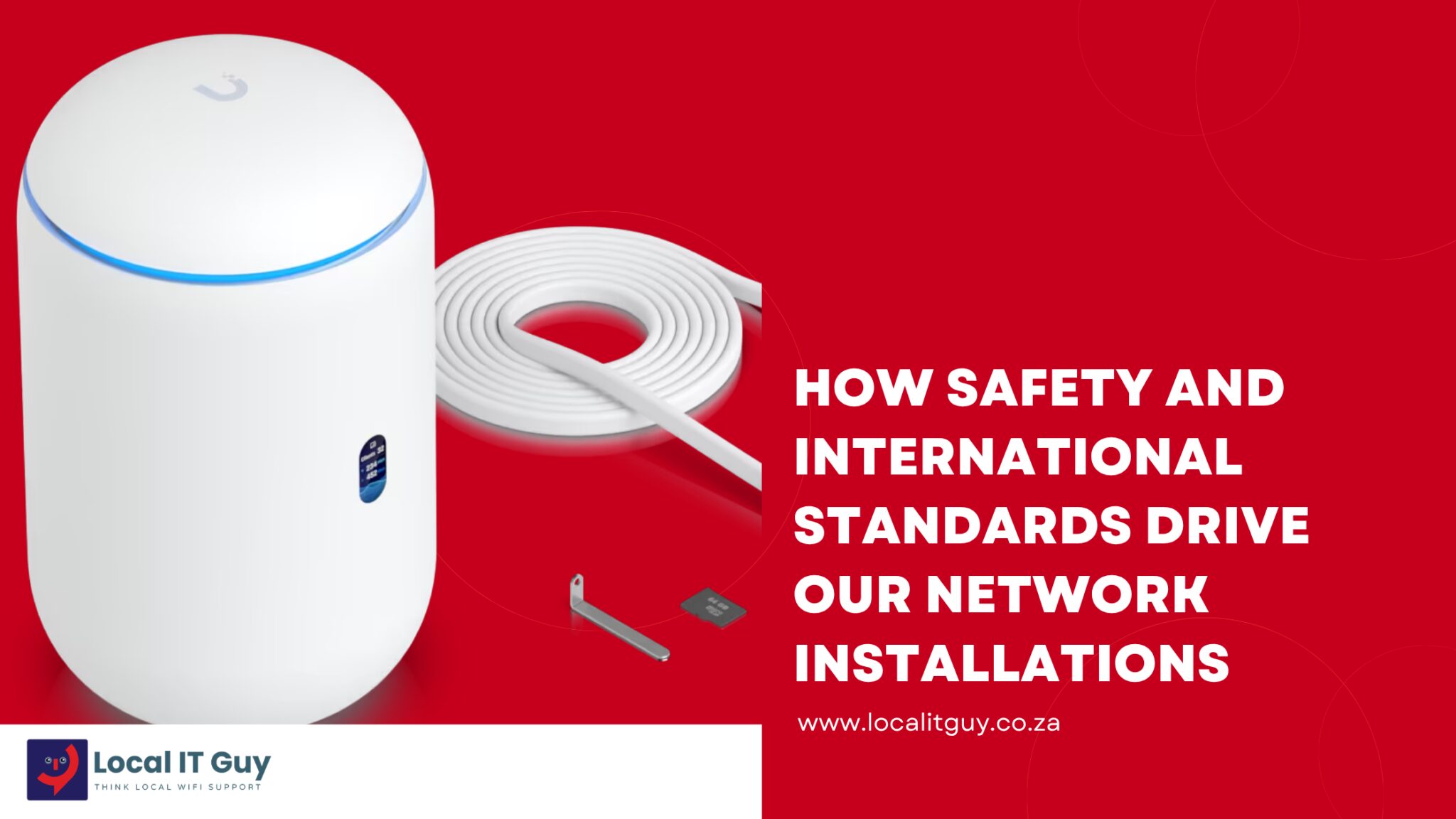
To gain complete control over network traffic, businesses must move to application-aware, Layer 7 firewall management. Upgrading from a standard ISP gateway to the UniFi Dream Router 7 (UDR7) offers enterprise-grade security, Deep Packet Inspection (DPI), content filtering, and ad blocking without recurring monthly subscription fees.
Case Study: Standard Industrie International (Centurion)
The Challenge
Standard Industrie International, an industrial operations firm based in Centurion, faced productivity challenges caused by unrestricted social media usage during working hours. Their existing TP-Link Wi-Fi 6 router offered basic web filtering, but employees easily bypassed these restrictions simply by opening the Facebook, Instagram, and TikTok apps on their mobile phones connected to the office Wi-Fi network.
Because the TP-Link hardware could only inspect web addresses (URLs) inside standard browsers, app-based mobile traffic passed through unchecked.
The Solution
To resolve this issue, Local IT Guy stepped in to overhaul the company’s network architecture. The legacy TP-Link router was replaced with a UniFi Dream Router 7, unlocking advanced traffic management and enterprise network segmentation.
Local IT Guy structured the network into four isolated VLANs:
- Management Network: Dedicated exclusively to core infrastructure, switches, and access points.
- Staff Network: Configured with strict application control rules targeting social media traffic.
- Guest Network: Set up with client isolation to ensure guest traffic remains completely separate from corporate assets.
- IoT & Security Network: Restricted to a 2.4 GHz broadcast channel dedicated to smart devices, access systems, and IP cameras.
How UniFi Secures Business Networks Without Subscription Fees
Many enterprise firewall solutions require expensive annual licensing to keep threat signatures and application database filters updated. UniFi provides enterprise-grade Deep Packet Inspection (DPI) and security features license-free out of the box.
+--------------------------------------------------------------------+
|                   UniFi Layer 7 Traffic Inspection                 |
|                                                                    |
|  [ Staff Device ] ---> ( Unencrypted/Encrypted Traffic )           |
|                                    |                               |
|                                    v                               |
|                     +-----------------------------+                |
|                     |  UniFi Deep Packet (DPI)    |                |
|                     +-----------------------------+                |
|                                    |                               |
|             +----------------------+----------------------+        |
|             |                                             |        |
|      ( Standard Web Traffic )                   ( Social Media App ) |
|             |                                             |        |
|             v                                             v        |
|    [ Allowed / Passed ]                           [ Blocked / Dropped ]
+--------------------------------------------------------------------+
- Deep Packet Inspection (DPI): UniFi operates at Layer 7 of the OSI model. Rather than looking only at destination web addresses, the firewall inspects the signature of the data packets themselves. When a worker opens the Facebook app, the UDR7 identifies the application signature and drops the connection instantly.
- Content Filtering & Ad Blocking: Native content filtering blocks explicit or malicious domains network-wide, while built-in ad blocking speeds up browsing and eliminates risk from malicious online ads (malvertising).
- Encrypted DNS Interception: Modern smartphones use features like Apple Private Relay or DNS-over-HTTPS (DoH) to bypass basic DNS blocks. By configuring UniFi firewall rules to block custom DNS ports (such as UDP/TCP Port 53) and intercept encrypted queries, users cannot bypass corporate security policies by changing their device settings.
Setting Up Basic App Blocking on UniFi
Setting up application-level blocks on a UniFi router can be completed in a few quick steps:
1. Enable DPI: Prerequisite.
Go to Settings > Security > Traffic Identification and toggle on both Deep Packet Inspection (DPI) and Device Identification.
2. Create Traffic Rule: Configuration.
Navigate to Settings > Routing > Traffic Rules and select Create New Rule.
3. Target Applications & Networks: Apply Policy.
Set the Action to Block, select App Category (e.g., Social Network), and set the target to the Staff Network. Optionally, set a time schedule so restrictions apply only during core business hours.
Upgrade Your Business Network Today
Relying on ISP-supplied equipment leaves network security vulnerable and limits control over business productivity. Upgrading to a UniFi gateway gives complete visibility over network traffic, blocks unauthorised app usage, and isolates critical infrastructure—all without recurring firewall software subscriptions.
If your business in Centurion, Midrand, or the broader Gauteng region requires a custom network installation or firewall upgrade, contact Local IT Guy today for an on-site network assessment.